
2 Effective Ways to Convert Kindle to EPUB
A personal walkthrough of two methods I used to convert Kindle ebooks to .epub files and make them easier to read across devices.

Kindle books are convenient to buy and keep in one account, but they are not always easy to use outside the Kindle ecosystem. Once I began paying more attention to ebook management, I realized that reading, backing up, or moving Kindle books to other devices was not always as simple as expected. That is why learning how to convert Kindle to EPUB became useful for me. In this article, I will go through two practical ways I have tried, and share how each one works in actual use.
Method 1: Convert Kindle to EPUB with Calibre
When I first looked into how to convert Kindle to EPUB, Calibre was one of the first tools I came across. That made sense. It is widely used for ebook management, and many readers already use it to organize titles, edit metadata, and convert formats. On its own, Calibre is not built specifically for Kindle conversion, but when paired with the DeDRM plugin, it becomes part of a workflow many readers use to make Kindle books readable in EPUB format.
What made this method worth trying for me was not simplicity, but flexibility. Calibre gives more control over the whole ebook library, so this approach felt less like using a single-purpose converter and more like building a workable system for long-term management. Calibre handled the library side well, while the plugin setup was the part that determined whether the workflow would actually help me convert Kindle books successfully.
How to Convert Kindle to EPUB with Calibre and DeDRM Plugins
My setup process was fairly standard, but it still took a bit of attention.
Step 1: Download the Kindle books to your computer
Download the Kindle books you want to process through Kindle for PC or Kindle for Mac. This step is necessary because Calibre works with locally stored files, not books that remain only in the cloud.
Step 2: Install Calibre and prepare the DeDRM plugin
Install Calibre on your computer, then download and unzip the DeDRM (v10.0.9) Tools package. Inside the extracted folder, locate the DeDRM plugin file that will be loaded into Calibre manually.
Step 3: Add the DeDRM plugin to Calibre
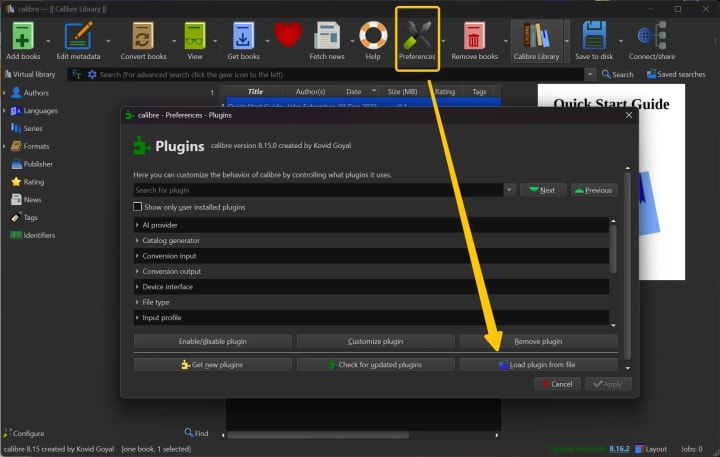
Open Calibre, go to Preferences, enter Plugins, and choose Load plugin from file. Select the DeDRM plugin file, confirm the warning message, and restart Calibre so the plugin can take effect.
Step 4: Install the KFX Input plugin if required
If the Kindle books need additional format support, install the KFX Input plugin as well. This extra step may be necessary in some newer Kindle workflows before Calibre can process the KFX files correctly.
Step 5: Import the Kindle books into Calibre
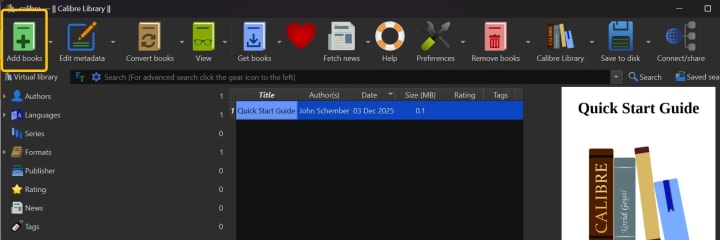
After the plugin setup is complete, add the downloaded Kindle books to Calibre. If the books were already imported before the plugins were installed, import them again so the conversion workflow can run properly during import.
Step 6: Convert Kindle books to EPUB
Select a book in Calibre and convert Kindle to EPUB. If the conversion works normally, the process has likely succeeded. After that, open the output file in another reading app and check the text layout, navigation, and overall readability.
Note: The Calibre DeDRM plugin no longer works with Kindle KFX ebooks downloaded via Kindle for PC version 2.4.1 or later. Please reinstall version 2.4.0 instead.
Method 2: Convert Kindle to EPUB with BookFab Kindle Converter
After trying Calibre, I also wanted to test a more direct option, so I used BookFab Kindle Converter. Compared with the open-source route, it felt more focused from the start. Instead of relying on library software and plugins, BookFab is built specifically for Kindle book conversion and can convert downloaded Kindle books to EPUB or PDF.
For users who want a simpler way to convert Kindle to EPUB, that difference matters. The workflow is more streamlined, with less setup and fewer extra steps.
From my experience, one practical advantage of BookFab is its support for newer Kindle formats. With Calibre, some files may require extra plugins, and even then, conversion does not always go smoothly. For users who want a more straightforward process, BookFab Kindle Converter is a practical option.
How to Convert Kindle to EPUB with BookFab Kindle Converter
Step 1: Install Kindle for PC and download the books
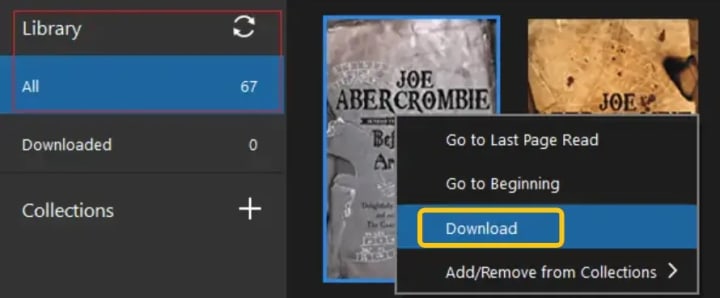
Install Kindle for PC and sign in with your Amazon account. Then open your library and double-click the cover to download the books you want to process.
Step 2: Open BookFab and scan the downloaded books
Launch BookFab, enter the Kindle Converter module, and click Refresh. The program will scan local storage and detect the Kindle books downloaded through Kindle for PC, so there is no need to import random ebook files manually.
Step 3: Set the output format as EPUB
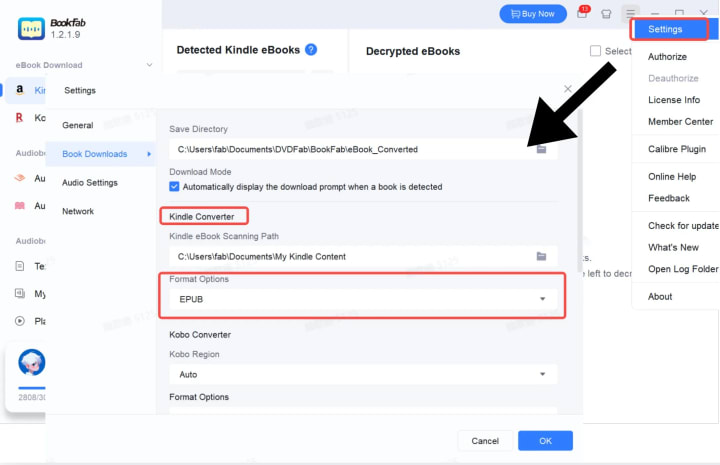
After the scan is complete, click three-line icon > settings > Book Downloads > Kindle Converter, and set the output format as EPUB.
Step 4: Start Kindle to EPUB conversion
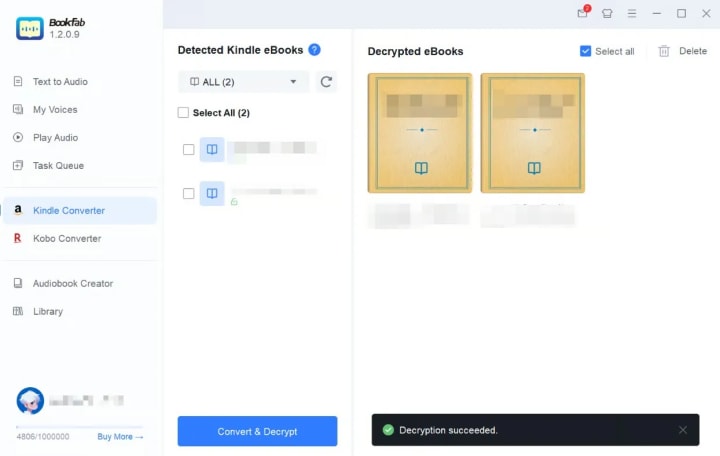
Select the books you want to convert and click Convert & Decrypt to begin processing. After processing, the converted files are saved to the selected output folder after the process is complete.
Note: BookFab Kindle Converter users can also get the free Calibre DeDRM plugin developed by BookFab. Once installed in Calibre, this BookFab Calibre plugin allows Calibre to decrypt all Kindle books, including KFX files, without being limited by the Kindle for PC version.
Summary
Both methods can help convert Kindle to EPUB, but they suit different needs.
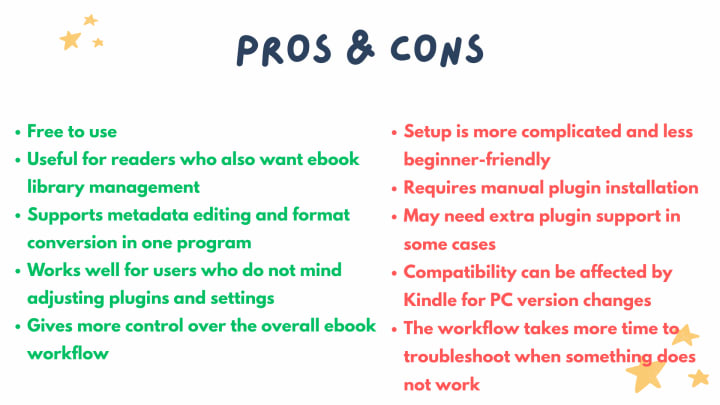
Calibre is a more flexible option for readers who do not mind extra setup. It can be useful if ebook management is also part of the goal, since Calibre offers library organization, metadata editing, and format conversion in one place. At the same time, this method involves more steps, and the actual result may depend on plugin setup and file compatibility.
BookFab Kindle Converter is the more direct option. It focuses on converting downloaded Kindle books to EPUB or PDF in a more concentrated workflow. In actual use, this approach feels easier to follow because the process requires less manual configuration.
From my perspective, the better choice depends on what matters more. If the priority is flexibility and library control, Calibre makes sense. If the priority is a simpler and more straightforward way to convert Kindle to EPUB, BookFab Kindle Converter is the more practical option.
About the Creator
Wenny
Hi there, I'm Wenny, a technical writer sharing multimedia solutions accessible for everyone. Read my articles to turn "how?" into "let's do it!"
Crypto Wallet App Development - 2026 Security Guide
The landscape of Crypto Wallet App Development has shifted. It moved from simple private key management to complex ecosystems. These ecosystems are multi-layered security environments. In 2026, the baseline for "secure" has been redefined. This change follows the growth of Account Abstraction (ERC-4337). It also follows the emergence of Post-Quantum Cryptography (PQC). PQC protects data against future quantum computer attacks. This guide provides a strategic framework for developers. It helps stakeholders navigate technical and regulatory requirements. Modern digital asset storage demands this high level of care.
By Del Rosario7 days ago in 01
Cutting Software Maintenance Costs by 30% in Long-Term Medical Device Lifecycles
In the fast-evolving healthcare technology landscape, medical device makers are under increasing pressure to deliver innovative, safe, and compliant solutions while keeping costs manageable over a product’s lifecycle. One of the biggest cost centers in long-term medical device operations is software maintenance—especially as devices become smarter, more connected, and driven by digital controls.
By Steve Waugh7 days ago in 01




Comments
There are no comments for this story
Be the first to respond and start the conversation.